












Integrationer
How to set up Digital Servicebook in TRISYS
You download a company ID and an API key in Digital Servicebook and insert them into the add-on module ServiceBook in TRISYS. Then the service is transferred when the work card is completed.
This guide is for workshops that work in TRISYS, the workshop system from Triscan. Once the connection is set up, the service is transferred to the car's digital service book when you complete the work card, so that the same service does not have to be registered in two places. Along the way, you can also choose to send the service on to the car manufacturer's own portal and decide which service type your own work should be shown as.
It must be in place first
You must have an active subscription with Digital Servicebook, and you must be able to log in to TRISYS with your admin account, as the setup is under the advanced settings. If you do not have an account with us yet, it can be created during the process. If the service is also to be sent to the manufacturers' portals, it requires that OE Upload has been purchased.
How to connect the two systems
- Log in to your account in Digital Servicebook.
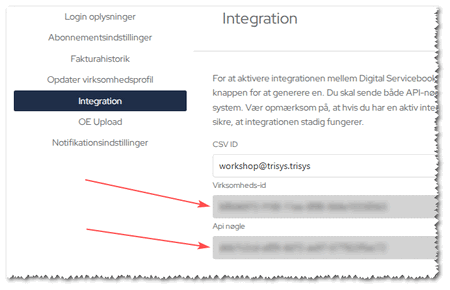
- Select My Profile , and then select Integration.
- Copy the Company ID and API key.
- Log in to TRISYS with your admin account.
- Select Settings, and then select Advanced settings.
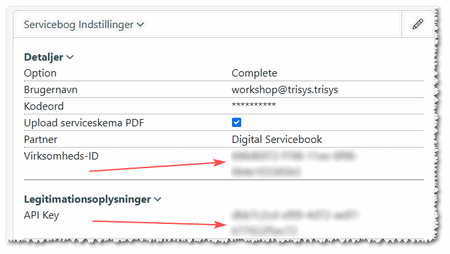
- Select Add-on modules and then ServiceBook.
- Paste the Company ID and API Key into the fields and save.
If the download doesn't work
The add-on module can also use a username and a password, and this is the setup that most often annoys: an incorrect password does not cause any errors, the service just does not transfer. If the transfer does not work, first check if the username and password are entered correctly. Then change to the company ID and API key as described above. This is the path Triscan itself points to, because it always works.
How to turn on OE Upload
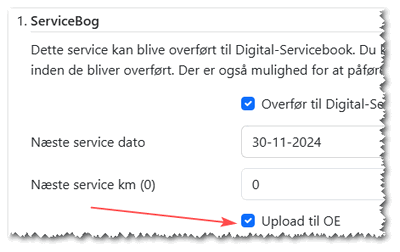
If you have purchased OE Upload, it must be enabled in TRISYS before it can be used. You do this under Settings, Advanced settings and Service book transfer, where you put a check mark in Activate transfer to OE. If it must be selected in advance on each work card, you also tick the Standard transfer to OE box.
When you complete the work card, TRISYS will check whether it is possible to upload to the manufacturer's portal on that particular vehicle. If possible, you can tick Upload to OE. If this is not possible, you will receive a message about it instead.
Link your work types, otherwise everything is called the same
TRISYS and Digital Servicebook each have their own work types, and you can decide which of our service types your own should be shown as. You do this under ServiceBook and mappings, where you click on the pencil next to the work type you want to link.
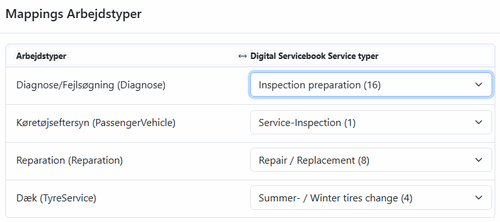
If you skip it, everything will be registered as Service/Repair. This is not wrong, and that is how it has worked so far, but then a tire change and an inspection cannot be distinguished from each other in the history. This is the one setting worth spending time on the first time you set up the integration.
You can always register directly with us
The integration is a shortcut and not a prerequisite. The service can always be created directly in Digital Servicebook via the web app, and the integration exists solely to save you from typing the same thing in two places.
Afterwards
The service is automatically transferred from TRISYS to Digital Servicebook when the work card is completed. If the customer also wants the service to be uploaded to the manufacturers' OE platforms, it can be set up in Digital Servicebook. If you experience problems getting the integration to work, please contact us.
Related
How to register service without a workshop system
If you do not have a workshop system, you can put Digital Servicebook as BCC on the invoice. We read it with OCR and create the service history from it.
How to set up Digital Servicebook in FTZ Plus
The connection is created once under Administration, and then you transfer a service to the car's history with one click directly from the invoice.
How to set up Digital Servicebook in macsData
macsData is Hella Gutmann's platform. The setup takes a few minutes, and you approve the connection with your own Digital Servicebook login.